Codecs and Encryption
The Temporal Service persists data from your Workflow Executions, including inputs, outputs, and results. To protect sensitive data, use a Payload Codec to encrypt payloads before they reach the Temporal Service. With encryption enabled, data exists unencrypted only on the Client and the Worker process, on hosts that you control.
The following data is persisted in the Event History and can be encrypted:
- Inputs and outputs/results in your Workflow, Activity, and Child Workflow
- Signal inputs
- Memo
- Headers, depending on your SDK:
- .NET and Ruby encode headers with your Payload Codec by default.
- Python 1.14.1 and later: set
header_codec_behavior=HeaderCodecBehavior.CODEConClient.connect. - TypeScript 1.26.0 and later: set the
codecHeadersWorker option. Headers passed through Client APIs aren't encoded. - Go 1.51.0 and later: implement
workflow.CodecContextPropagatoron each context propagator whose headers you want encoded. - Java 1.41.0 and later: override
ContextPropagator.encodeHeaders()on each context propagator whose headers you want encoded.
- Query inputs and results
- Results of Local Activities and Side Effects
- Application errors and failures. Failure messages and call stacks are not encoded as codec-capable Payloads by default; you must explicitly enable encoding these common attributes on failures. For more details, see Failure Converter.
For encryption implementation examples, see the following samples:
Alternatively, use Temporal Proxy (Public Preview) to encrypt payloads before they reach the Temporal Service without changing Worker or Client code. You run the proxy in your environment, where it has access to plaintext payloads and your KMS. See the proxy's encryption guide for configuration and coverage limits.
On Temporal Cloud, Payload encryption validation (Pre-release, invite-only) checks whether supported incoming Payloads carry the encryption metadata expected from your Payload Codec or encryption proxy. Depending on the mode you configure, it warns about or rejects Payloads that don't. It does not encrypt Payloads.
To view encrypted data in the Web UI and CLI, set up a Codec Server. The following sections cover how to set up a Codec Server and configure the Web UI and CLI to use it.
Codec Server setup
Use a Codec Server to programmatically decode your encoded payloads.
A Codec Server is an HTTP server that uses your custom Codec logic to decode your data remotely. The Codec Server is independent of the Temporal Service and decodes your encrypted payloads through predefined endpoints. When you configure a Codec Server endpoint in the Web UI or CLI, the Web UI and CLI use the remote endpoint to send and receive payloads from the Codec Server. See API contract requirements.
The Web UI displays the decoded payloads in the Workflow Execution Event History. Payloads are decoded on the client side only. Payloads on the Temporal Service (whether on Temporal Cloud or self-hosted) remain encrypted.
Configuring a Codec Server endpoint for the Web UI or CLI does not encrypt Payloads sent by your Workers and Clients.
Because you create, operate, and manage access to your Codec Server in your own environment, ensure that you consider the following:
- When you register a Codec Server endpoint with your Web UI, expect the Codec Server to receive multiple requests per Workflow Execution.
- Ensure that you secure access to your Codec Server. For details, see Authorization. You might need some form of Key management infrastructure for sharing your encryption keys between the Workers and your Codec Server.
- You will need to enable CORS on the HTTP/HTTPS endpoints in your Codec Server to receive requests from the Temporal Web UI.
- You may introduce latency in the Web UI when sending and receiving payloads to the Codec Server.
Your Codec Server should share logic with the custom Payload Codec used elsewhere in your application.
API contract specifications
When you create your Codec Server to handle requests from the Web UI, the following requirements must be met.
Endpoints
The Web UI and CLI send POST requests to the following endpoints on your Codec Server:
/decodepasses incoming payloads to the decode method in your Payload Codec./encodepasses incoming payloads to the encode method in your Payload Codec./downloadretrieves and decodes payloads from External Storage. This endpoint is only needed if your Workers use External Storage. See Codec Server with External Storage for details.
For Codec Server implementations in each SDK, see SDK Codec Server samples.
You can also add a verification step to check whether the incoming request has the required authorization to access the decode logic in your Payload Codec.
Headers
Each request from the Web UI to your Codec Server includes the following headers:
-
Content-Type: application/json: Ensure that your Codec Server can accommodate this MIME type. -
X-Namespace: {namespace}: This is a custom HTTP Header. Ensure that the CORS configuration in your Codec Server includes this header. -
[Optional]
Authorization: <credentials>: Include this in your CORS configuration when enabling authorization with your Codec Server.
For details on setting up authorization, see Authorization.
Request body
The general specification for the POST request body contains payloads.
By default, all field values in your payload are base64 encoded, regardless of whether they are encrypted by your custom codec implementation.
The following example shows a sample POST request body with base64 encoding.
{
  "payloads": [{
    "metadata": {
      "encoding": <base64EncodedEncodingHint>
    },
    "data": <encryptedPayloadData>
  }, ...]
}
CORS
By default, in cross-origin Fetch/XHR invocations, browsers will not send credentials. Enable Cross-Origin Resource Sharing (CORS) requests on your Codec Server to receive HTTP/HTTPS requests from the Temporal Web UI.
At a minimum, enable the following responses from your Codec Server to allow requests coming from the Temporal Web UI:
Access-Control-Allow-OriginAccess-Control-Allow-MethodsAccess-Control-Allow-Headers
For example, for Temporal Cloud Web UI hosted at https://cloud.temporal.io, enable the following in your Codec Server:
Access-Control-Allow-Origin: https://cloud.temporal.ioAccess-Control-Allow-Methods: POST, GET, OPTIONSAccess-Control-Allow-Headers: X-Namespace, Content-Type
For details on what a sample request/response looks like from the Temporal Web UI, see Sample Request/Response.
If setting authorization, include Authorization in your Access-Control-Allow-Headers.
If you enable Include cross-origin credentials, also return Access-Control-Allow-Credentials: true and set
Access-Control-Allow-Origin to the Web UI's origin, not *. Otherwise the browser blocks the response.
For details on setting up authorization, see Authorization.
Authorization
Restrict access to a production Codec Server, because it can decode sensitive data with a single API call.
- If the Codec Server is reachable only on
localhostor behind a VPN such as WireGuard, network restrictions might be enough. The Web UI can communicate with a Codec Server that is only accessible onlocalhost. - If the Codec Server is reachable beyond
localhost, make it an HTTPS server and authenticate each request.
The Web UI supports two ways to authenticate requests to your Codec Server. Turn them on in the Codec Server endpoint settings described in Web UI.
- Include cross-origin credentials (recommended). The browser sends cookies scoped to your Codec Server's domain, so the Codec Server can use your organization's own authentication provider. The codec-cors-credentials sample shows this approach.
- Pass access token. The Web UI sends a JWT in the
Authorizationheader. On Temporal Cloud, verify its signature against the Temporal Cloud JWKS endpoint. On a self-hosted Temporal Service, the token comes from the auth provider you configured for the Web UI.
Authentication tells you who the user is, not which Namespaces they can decode. Before you return decoded Payloads,
check the Namespace in the X-Namespace header against the user's permissions.
For how each option works, browser requirements, and the claims in the Temporal Cloud token, see Securing a Codec Server.
Sample request/response
Consider the following sample request/response when creating and hosting a Codec Server with the following specifications:
- Scheme:
https - Host:
dev.mydomain.com/codec - Path:
/decode
HTTP/1.1 POST /decode
Host: https://dev.mydomain.com/codec
Content-Type: application/json
X-Namespace: myapp-dev.acctid123
Authorization: Bearer <token>

{"payloads":[{"metadata":{"encoding":"anNvbi9wcm90b2J1Zg==","messageType":"dGVtcG9yYWxfc2hvcC5vcmNoZXN0cmF0aW9ucy52MS5TdGFydFNob3BwaW5nQ2FydFJlcXVlc3Q="},"data":"eyJjYXJ0SWQiOiJleGFtcGxlLWNhcnQiLCJzaG9wcGVySWQiOiJ5b3VyLXNob3BwZXItaWQtZXhhbXBsZSIsImVtYWlsIjoieW91ci1lbWFpbEBkb21haW4uY29tIn0"}]}

200 OK
Content-Type: application/json

{
  "payloads": [{
    "metadata":{
      "encoding": "json/protobuf",
      "messageType": "temporal_shop.orchestrations.v1.StartShoppingCartRequest"
    },
    "data":{
      "cartId":"example-cart",
      "shopperId":"your-shopper-id-example",
      "email":"your-email@domain.com"
    }}]
}
You can also perform remote encoding on an /encode endpoint, which looks the same in reverse:
- Scheme:
https - Host:
dev.mydomain.com/codec - Path:
/encode
HTTP/1.1 POST /encode
Host: https://dev.mydomain.com/codec
Content-Type: application/json
X-Namespace: myapp-dev.acctid123
Authorization: Bearer <token>

{"payloads":[{"metadata":{"encoding":"json/protobuf","messageType":"temporal_shop.orchestrations.v1.StartShoppingCartRequest"},"data":{"cartId":"example-cart","shopperId":"your-shopper-id-example","email":"your-email@domain.com"}}]}

200 OK
Content-Type: application/json

{
  "payloads": [
    {
      "metadata": {
        "encoding": "anNvbi9wcm90b2J1Zg==",
        "messageType": "dGVtcG9yYWxfc2hvcC5vcmNoZXN0cmF0aW9ucy52MS5TdGFydFNob3BwaW5nQ2FydFJlcXVlc3Q="
      },
      "data": "eyJjYXJ0SWQiOiJleGFtcGxlLWNhcnQiLCJzaG9wcGVySWQiOiJ5b3VyLXNob3BwZXItaWQtZXhhbXBsZSIsImVtYWlsIjoieW91ci1lbWFpbEBkb21haW4uY29tIn0"
    }
  ]
}
Set your Codec Server endpoints with Web UI and CLI
After you create your Codec Server and expose the requisite endpoints, set the endpoints in your Web UI and CLI.
Web UI
On Temporal Cloud and self-hosted Temporal Service, you can configure a Codec Server endpoint to be used for a Namespace in the Web UI.
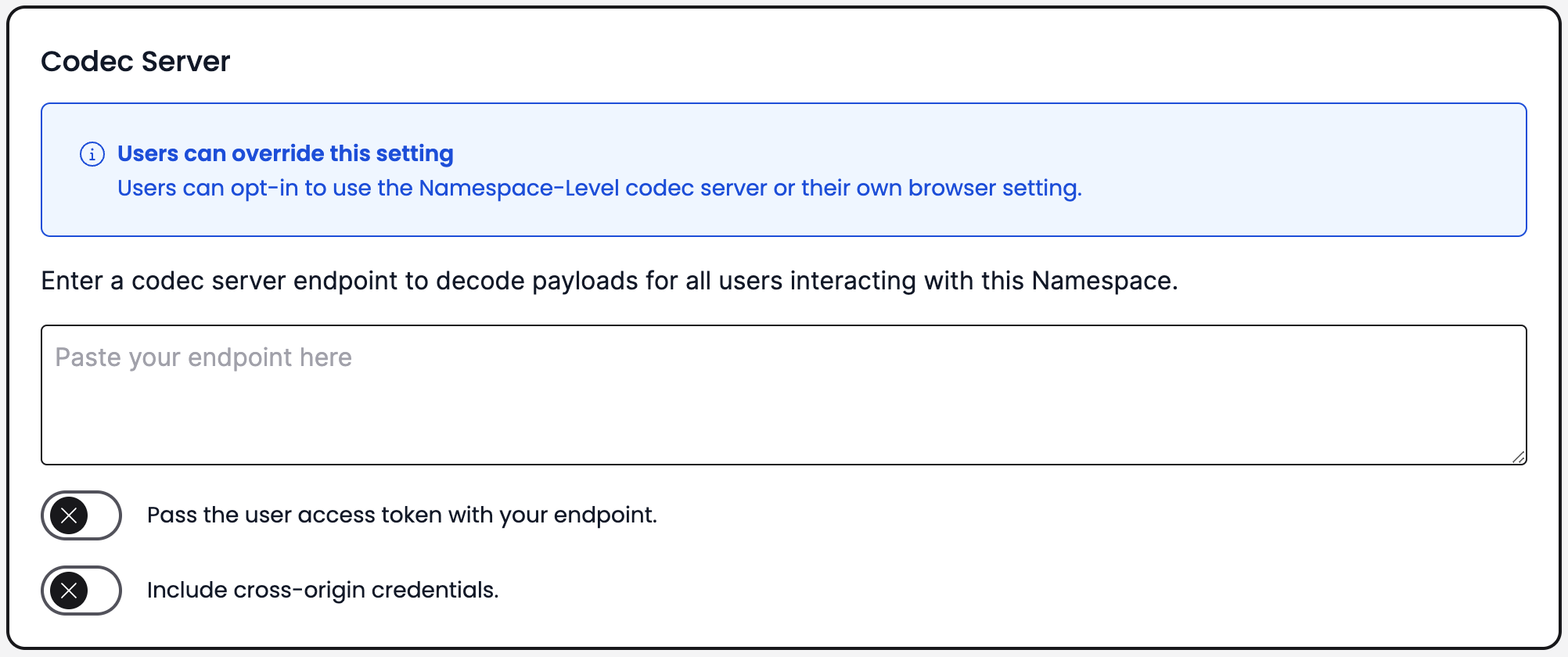
Codec Server endpoint Namespace setting
If your Codec Server is on a private network, your browser may block Temporal Web UI from accessing it. On Chrome, your browser may prompt you to allow access to the Codec Server endpoint. Make sure to allow access to the Codec Server endpoint. Refer to the Chrome for Developers blog: New permission prompt for Local Network Access for details on this permission prompt.
If your browser has blocked Temporal's access to your Codec Server, refer to Chrome documentation for details on how to change the site settings. In Site settings, look for the Local network setting and change it to Allow to only change this setting for Temporal without affecting other sites.
To set a Codec Server endpoint on a Namespace, do the following.
- In the Web UI, go to Namespaces, select the Namespace where you want to configure the Codec Server endpoint, and click Edit.
- In the Codec Server section on the Namespace configuration page, enter your Codec Server endpoint and port number.
- Optional: If your Codec Server authenticates users with its own session cookies, enable Include cross-origin credentials.
- Optional: If your Codec Server validates the Web UI access token, enable Pass access token to send a JWT with each request.
On Temporal Cloud, you must have Namespace Admin privileges to add a Codec Server endpoint on the Namespace. Setting a Codec Server endpoint on a Cloud Namespace enables it for all users on the Namespace.
Setting a Codec Server endpoint on a self-hosted Temporal Service enables it for the entire Temporal Service. You can use a single Codec Server to handle different encoding and decoding routes for each namespace.
You can also override the global Codec Server setting at the browser level. This can be useful when developing, testing, or troubleshooting encoding functionality.
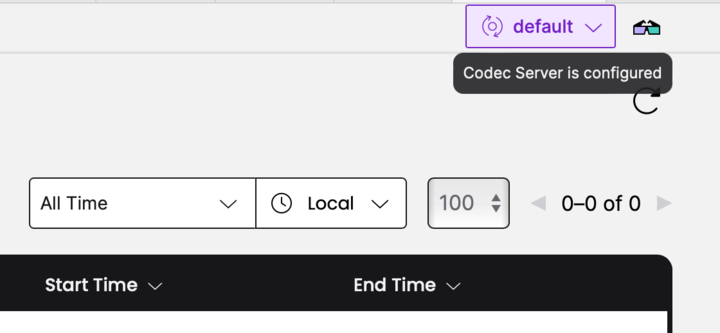
Codec Server endpoint browser setting
To set a browser override for the Namespace-level endpoint, do the following.
- Navigate to Workflows in your Namespace.
- In the top-right corner, select Configure Codec Server.
- Select whether you want to use the Namespace-level (or Temporal Service-level for self-hosted Temporal Service) or the browser-level Codec Endpoint setting as the default for your browser.
In Temporal Cloud:
- Use Namespace-level settings, where available. Otherwise, use my browser setting. Uses the Namespace-level Codec Server endpoint by default. If no endpoint is set on the Namespace, your browser setting is applied.
- Use my browser setting and ignore Namespace-level setting. Applies your browser-level setting by default, overriding the Namespace-level Codec Server endpoint.
- Enter your Codec Server endpoint and port number.
- Optional: If your Codec Server authenticates users with its own session cookies, enable Include cross-origin credentials.
- Optional: If your Codec Server validates the Web UI access token, enable Pass access token to send a JWT with each request.
In a self-hosted Temporal Service with dedicated UI Server configuration, you can also set the codec endpoint in the UI server configuration file:
codec:
    endpoint: {{ default .Env.TEMPORAL_CODEC_ENDPOINT "{namespace}"}}
CLI
You can configure a Codec Server endpoint with the Temporal CLI using the --codec-endpoint flag.
For example, if you are running your Codec Server on http://localhost:8888, you can use env set to set the endpoint globally:
temporal env set --codec-endpoint "http://localhost:8888"
If your Codec Server endpoint is not set globally, provide the --codec-endpoint option with each command.
For example, to see the decoded output of the Workflow Execution "yourWorkflow" in the Namespace "yourNamespace", run:
temporal --codec-endpoint "http://localhost:8888" --namespace "yourNamespace" workflow show --workflow-id "yourWorkflow" --run-id "<yourRunId>" --output "table"
For details, see the CLI reference.
If your Codec Server requires authentication, the Temporal CLI will also accept a --codec-auth parameter to supply an
authorization header:
temporal workflow show \
   --workflow-id converters_workflowID \
   --codec-endpoint 'http://localhost:8081/{namespace}' \
   --codec-auth 'auth-header'
Working with large payloads
If your payloads exceed the Temporal Service's size limits, use External Storage to offload large payloads to an external store like Amazon S3. The Web UI displays a claim reference instead of the payload content for externally stored payloads. When External Storage is configured on your Codec Server, the Codec Server can retrieve and decode these payloads for viewing in the Web UI and CLI. See Codec Server with External Storage for details.
Temporal Nexus
The Data Converter works the same for a Nexus Operation as it does for other payloads sent between a Worker and Temporal Cloud. Both the caller and handler Workers must use compatible Data Converters to pass operation inputs and results between them.
See Nexus Payload Encryption & Data Converter for details.